Account Settings - MS Teams Authorization
This page is accessed as:

If you already have a Microsoft Teams account, you can authorize this app to use it while scheduling a meeting. We'll take care of sending the proper URL links to all meeting participants.
You only need a Microsoft Teams account if you want to host the meeting. Participants do not require Teams accounts. TrustedPeer is not affiliated with Microsoft.
Not all Microsoft accounts are permitted to host meetings. A “school” or “business” Microsoft account is required (“personal” accounts are not authorized.) In addition your administrator must have enabled Teams for you account (this may be done as a global authorization.)
From this settings page, you authorize (or de-authorize) a connection between TrustedPeer Entrepreneurship and your Teams account.
Installation - Authorize Team
On clicking
you will be presented
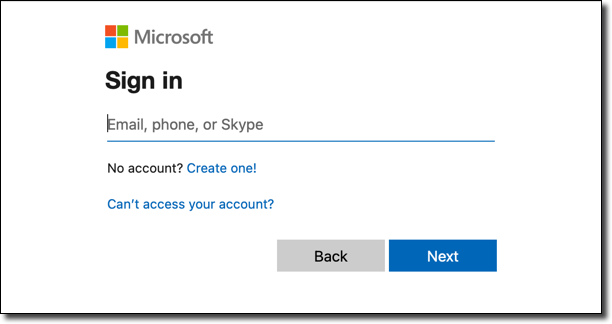
with a Microsoft-provided login popup. From here provide your Microsoft credentials
(not your TrustedPeer Entrepreneurship credentials) to login.
After login, you may be prompted to Accept the connection.
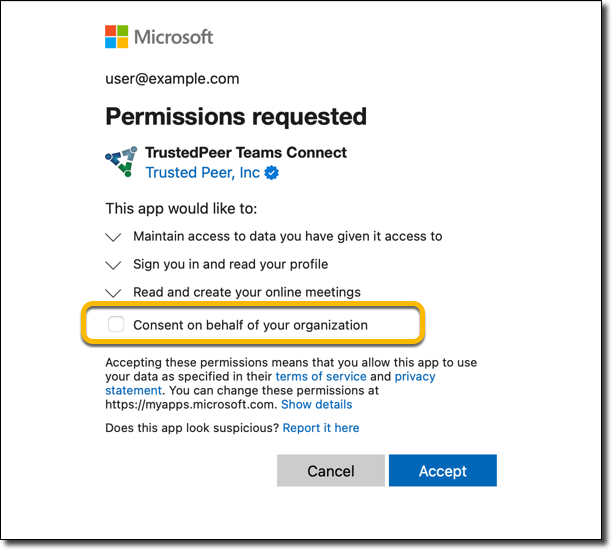
Note that if you have elevation authorization within your organization, you may be able to
Consent on behalf of your organization. Otherwise, you may be able to accept the connection
only for your Teams account. If your Microsoft account is not authorized to connect with Teams, consult your
account administrator.
Continue and you'll return to this Setting page, where you will note that the status has been updated to Authorized.
We don't get or store your Microsoft login or password. Microsoft provides us with an access token, usable only by this site. If for some reason that token becomes unusable, we'll prompt you to re-authorize.
At any time, you can disconnect Microsoft Teams and TrustedPeer Entrepreneurship by following the Uninstallation procedure described below.
Using Microsoft Teams
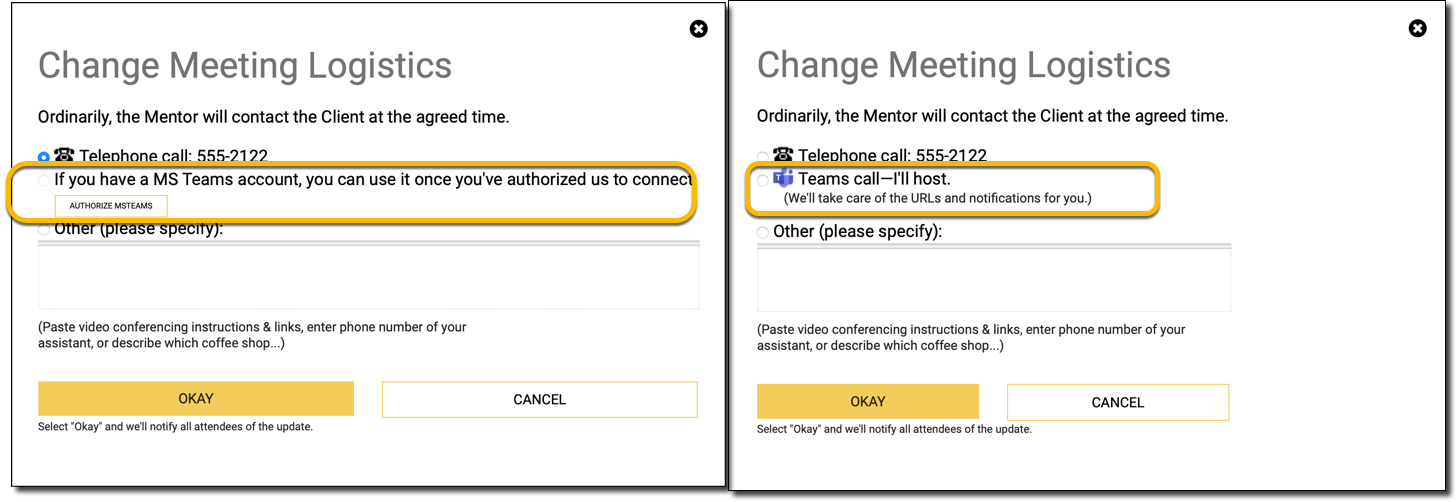
To use Teams for a meeting, create a meeting with a Peer, and then change
the Meeting Logistics ("How we meet") to Teams. If you've not already
authorized Teams, you can do it from the popup.
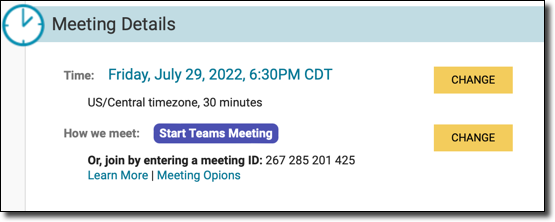
Once selected, we'll update the logistics to include a start button for the meeting. We'll include the
participant URL, in case you need to reference it for others. All participants will be notified of the meeting
and Calendar invitations will be sent including the URL, so you shouldn't need to copy this URL.
Later, if you change the meeting time, or want to change the meeting type to in-person or via telephone, just update the Meeting Logistics and we'll handle the rest: updating or removing the Teams meeting as appropriate.
Troubleshooting
Your MS Teams meeting is independent of TrustedPeer Entrepreneurship. We don't get notification if the actual meeting occurred, recordings, or transcripts. Similarly, you may be able to set / unset meeting parameters (video, meeting room, etc.) by using the Microsoft Teams app.
Some Teams accounts allow a limited number of meeting participants, or a limited meeting duration. We don't have access to your account's limitations, so you may be able to schedule a four-hour meeting, but your Teams account limitations may restrict the actual meeting to only 40 minutes. You should be aware of your account's features.
Be careful modifying scheduling information outside of TrustedPeer Entrepreneurship, as the information may become out-of-sync. If you need to cancel or postpone a meeting, use the button on your Meeting Details.
You may be prompted to re-authorize the MS Teams connection. This may occur if you've not used the connection for a long time, or if some parameters associated with your account have changed. Re-authorization simply repeats the initial installation process. If you get continued prompts to re-authorize, please contact support.
Uninstallation - De-Authorize MS Teams
If you no longer want to permit TrustedPeer Entrepreneurship to connect with your MS Teams Account, select button on this page. We'll immediately remove all access tokens related to your account.
You can always re-connect at a later time.
See also:
Search:
Still need help?
- Go to Help Center
- Using Help Center
- Send us a note right now:
- Email us at support@trustedpeer.com