Field Editor
This pages allows you to add, remove, and reorder fields.
The editor is available only to Site Administrators and Field Editors, and is accessed from

- Select "Field Editor" for the class of content you would like to change
Here you control field definitions and the order in which they will be displayed. In general, if there is no data provided for a particular field, then the field, it's label and icon, are not displayed.
Common tasks
- Add field
- Press button to add a new field at the bottom of the list. You will then be able to modify field information, and move the field as desired.
- Delete field
- Press the Trashcan on the right of the row to delete the field. Caution, deleting the field definition will delete all data associated with that field..
- Reorder field
- A field can be reordered using the
 arrow on the left.
Drag the field up or down. A grey placeholder box will appear in the list to guide placement. Reordering the
fields on this page will cause the display of the information on the page to be similarly
reordered. This also how subfields are moved into a Group field.
arrow on the left.
Drag the field up or down. A grey placeholder box will appear in the list to guide placement. Reordering the
fields on this page will cause the display of the information on the page to be similarly
reordered. This also how subfields are moved into a Group field.

- Modified field information
- Click on the field row (anywhere except on the reorder arrows or delete image) and a popup will be displayed with information about the field. You can change the field type, it's label and icon.
- Update selection field values
- Some field types have pre-defined values. During editing, they're presented to the user as a single or multiple selection field. To add, remove, reorder the possible values, click on the button.
Field display key
Though detailed field information is visible in the popup while modifying the field, some information about each field is visible on this page.
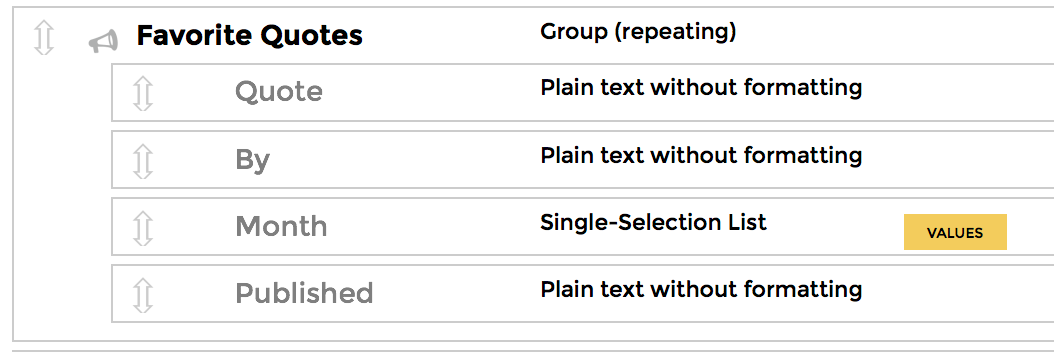
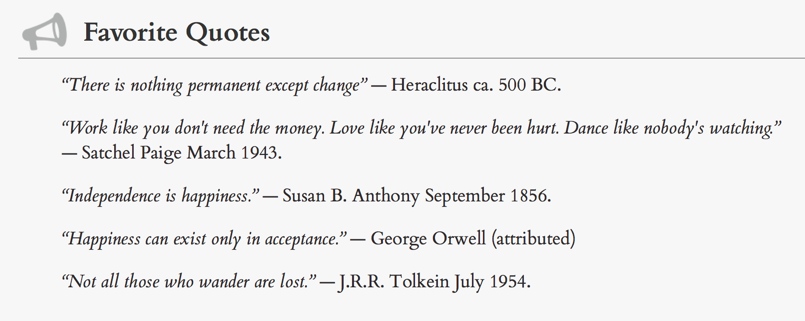
In the following example, you can see there is a single grouping field named "Favorite Quotes". It contains four subfields. The group field includes an icon, and it's label will be displayed: we know this because the label itself is displayed using black text in this list. The subfield labels will not be displayed: we know this because their labels are displayed in grey text.
And here is the resulting display:
CAUTION:
Not all combinations work, so be sure to test any changes by actually trying to create the content.
For example, "Attachment" types cannot be embedded within a repeating group. You can code it, but you'll
not get a workable result.
See also:
Search:
Still need help?
- Go to Help Center
- Using Help Center
- Send us a note right now:
- Email us at support@trustedpeer.com