Group Account Balance
Each group has an account from which funds may be allocated for services.
Group Administrators, with appropriate authorization, can view and update their group's balance.
To access:

- Groups Account Funds section
This is accessible only to Group Administrators who have Allocate Funds & Budget privilege for this group. (See Group Account Access Management for more information about privileges.)
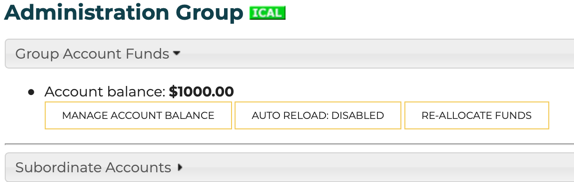
This section displays the current balance and allows you to:
- Manage the account balance: Add money using a credit card, get receipts, and view log of charges.
- Manage auto-reload: Enable / disable automatic re-loading of account funds when balance is low.
- Re-allocate funds: Move existing part or all of this group's balance to one or more different groups.
Manage Account Balance
Select to add to the account balance. Select a credit card, if you have previously saved one, or select Use different card to enter credit card information. Optionally: click the checkbox to save this credit card for later use. (See Is it safe? for how we handle credit cards.)
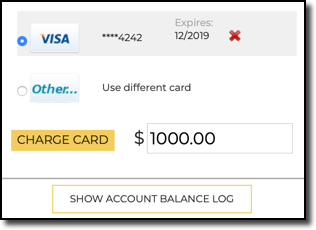
You can change the amount to be charged. This will be a one-time, immediate charge.
Select for receipts and to see list of previous charges.
Manage Auto-Reload
Select to enable or disable auto-reload.
Auto-reload allows to set an amount to automatically charge, whenever your account balance is less than $1,000. You must have a credit card already saved for this account. You will need to provide an email address we will use to notify you in case charges are denied some time in the future (expired credit card, for example.)
The auto-reload feature is useful if your group frequently purchases services on this platform and you want them to you use funds from your group, rather than providing their own credit card for each transactions. You can set a limit on how much each group member can spend under the Members and Permissions section.
Re-Allocate Funds
Select to move funds from one group to another group.
If you are authorized to allocate funds for more than one group, you will be prompted to select the two accounts, and the amount to be transferred. We'll provide you with current balance in each group as an aid.
See also:
Search:
Still need help?
- Go to Help Center
- Using Help Center
- Send us a note right now:
- Email us at support@trustedpeer.com