
Embedding Video into Content
You can embed video from YouTube, edpuzzle or Vimeo directly into your content. One advantage to embedding video is that you will keep your view on this platform rather than having them navigate to another page.
The only disadvantage to embedding is it's a bit harder for you to do.
Videos are embedded in a similar manner:
- Go to your video and get the embed code
For YouTube the code will look similar to:
<iframe src="https://www.youtube.com/embed/7YYtghe"></iframe>For Vimeo it will look like:
<iframe src="https://player.vimeo.com/video/HGHeRtt6"></iframe>For edpuzzle it will look like:
<iframe src="https://edpuzzle.com/embed/media/XXaeeRtt6"></iframe>You can also embed edpuzzle lessons like:
<iframe src="https://edpuzzle.com/embed/assignments/XXaeeRtt6"></iframe> -
Use the source code editor to enter the text.
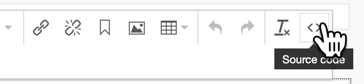
 (Not all source code editors allow you to add video. The ones that do will have
the table icon in the toolbar.)
(Not all source code editors allow you to add video. The ones that do will have
the table icon in the toolbar.)
- You may add the iframe to any field, but the field must be enabled for advanced editing ("Text and Images (Formatted)"). Otherwise your change will be ignored.
- You can add some styling information to the iframe, such as style="min-width: 320px; height:630px".
- You can add other iframe attributes such as frameborder="0", allow="autoplay", or width="340" height=700" if you like.
See also:
Search:
Still need help?
- Go to Help Center
- Using Help Center
- Send us a note right now:
- Email us at support@trustedpeer.com